



How to Add AdSense Auto Ads to Google AMP Pages in WordPress
Posted on August 17th, 2018
For AdSense publishers that use Google AMP by Automattic, after setting up auto ads and adding to your WordPress site, you must have noticed that Google ads don’t appear on the the Accelerated Mobile Pages (AMP) of your site.
This could cost you thousands of dollars in earnings, if a great deal of your visitors use their mobile devices.
After receiving several requests from my readers to publish a tutorial to correct this anomaly, I have decided to do just that. This tutorial will show you how to add AdSense on AMP pages.
Video Tutorial
If you don’t find the video sufficient, or you just want to know more, then continue reading.
You can easily display ads on AMP pages using several plugins. However, many of them come at an extra cost. You don’t have to spend a dime to get this done – It’s not as difficult as you imagine.
To display ads on AMP with this guide, we will be making use of the latest innovative feature called “Auto Ads”.
The auto ads feature allows you to add a simple code to your site, and after adding that code you can easily manage your ads directly from your AdSense dashboard.
Follow this guide: setup auto ads and add to WordPress
If you are very familiar with your AdSense Dashboard, you must have noticed a new feature located within Optimization>>Lab. This feature is called “AMP auto ads (text and display) – A great new way to monetize your AMP pages. Switch on this lab to place text and display ads on any AMP page that you’ve tagged with the AMP Auto ad code”.
First thing you need to do is toggle on this feature and click on get code.
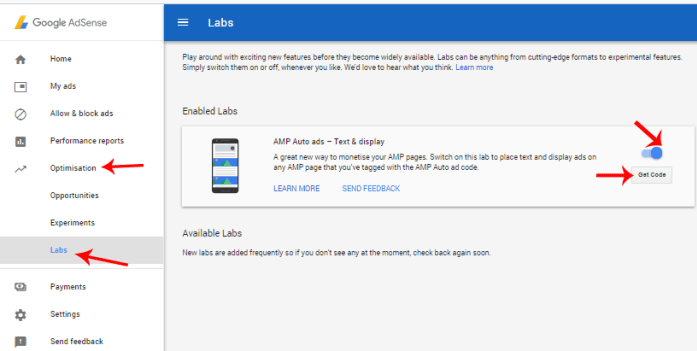
You will be provided with an AMP code you have to add to two places on your website.

AdSense has a guide to add this code to your site. However, you may find this difficult to implement without proper guidance if you are not a tech savvy. This post will help you add those AMP codes to your site even if you are new to coding.
You can add AMP codes by directly customizing your AMP plugin. But the most recommended method is to add your AMP code to your theme functions.
How to add AMP codes to theme functions
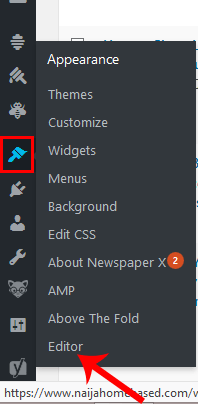
Make sure you are logged in to your WordPress dashboard. Hover your mouse cursor on the appearance icon and click on editor.
Make sure the theme you want to add your AMP code to is selected and click on Theme functions (functions.php).
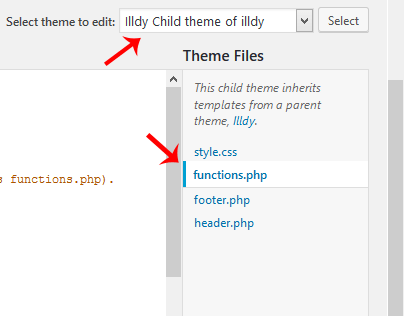
Recommended action: Add AMP code to a child theme and not a parent theme. Remove AMP code previously added to AMP plugin if that didn’t work.
Add the two codes below to your functions.php respectively, ensuring you replace //adsense_header_code and //adsense_footer_code with your AMP header and footers codes respectively.
//Adding Header Code in AMP pages in WordPress add_action(‘amp_post_template_head’,’nhb_amp_my_custom_head’); function nhb_amp_my_custom_head($amp_template) { ?> //adsense_header_code <?php }
//Adding Footer Code in AMP pages in WordPress add_action(‘amp_post_template_footer’,’nhb_amp_my_custom_footer’); function nhb_amp_my_custom_footer($amp_template) { ?> //adsense_footer_code <?php }
The final piece of code within your functions.php should look like the one in the image below.

With this method, Ads will begin to show up within your AMP pages. You can also verify this by visiting yoursite.com/page/amp/
If you intend to configure your AMP plugin directly (not recommended), here’s a guide for you.
How to add AdSense AMP code to AMP plugin
You can configure your plugin directly from your WordPress dashboard. However, it is advisable not to do that. The best way to configure your plugin is to Add the code using your FTP/SFTP client. In my case, I access my remote site using FileZilla. It is one of the best FTP clients out there.
Make sure you are logged in to your FTP client and ensure the location on the remote site points to /public_html/wp-content/plugins/amp/templates.
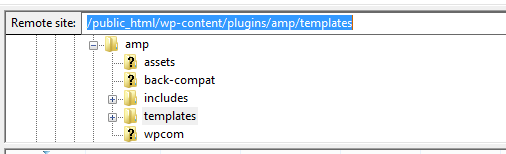
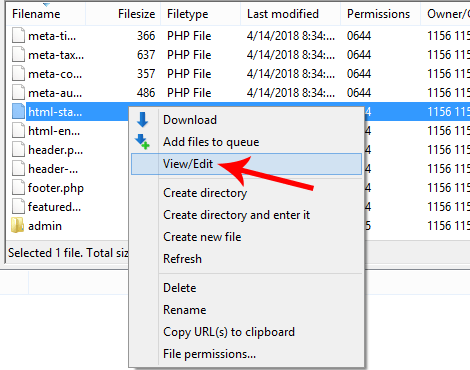
Under your amp>>template, you should see the filename html-start.php. right click on that file and click on edit.
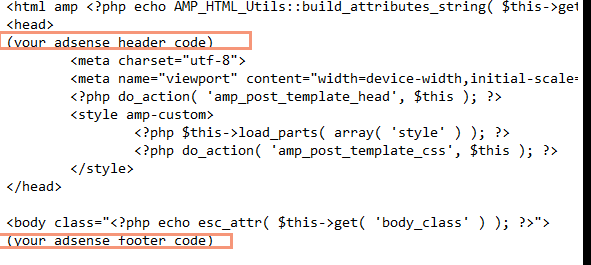
Paste the AdSense header code directly below the <head> tag and the footer code directly below the opening <body tag, as shown in the image below.
After pasting the code in your editor, save the settings to your server.
Google Ads should start displaying in your AMP pages immediately. You can verify this by visiting any of your site/blogpost/amp in a mobile phone browser (preferably chrome browser). Google ads may not be visible in search results until around 20-30 minutes.
That’s everything about adding auto ads to your AMP pages in WordPress. Feel free to communicate your challenges if you were unable to get this done.
Subscribe to this blog using the subscription box below. Also, follow us on Facebook and Twitter to get access to our exclusive tutorials faster than anyone else.
Content retrieved from: https://www.naijahomebased.com/adsense-amp-code-amp-pages-wordpress/.